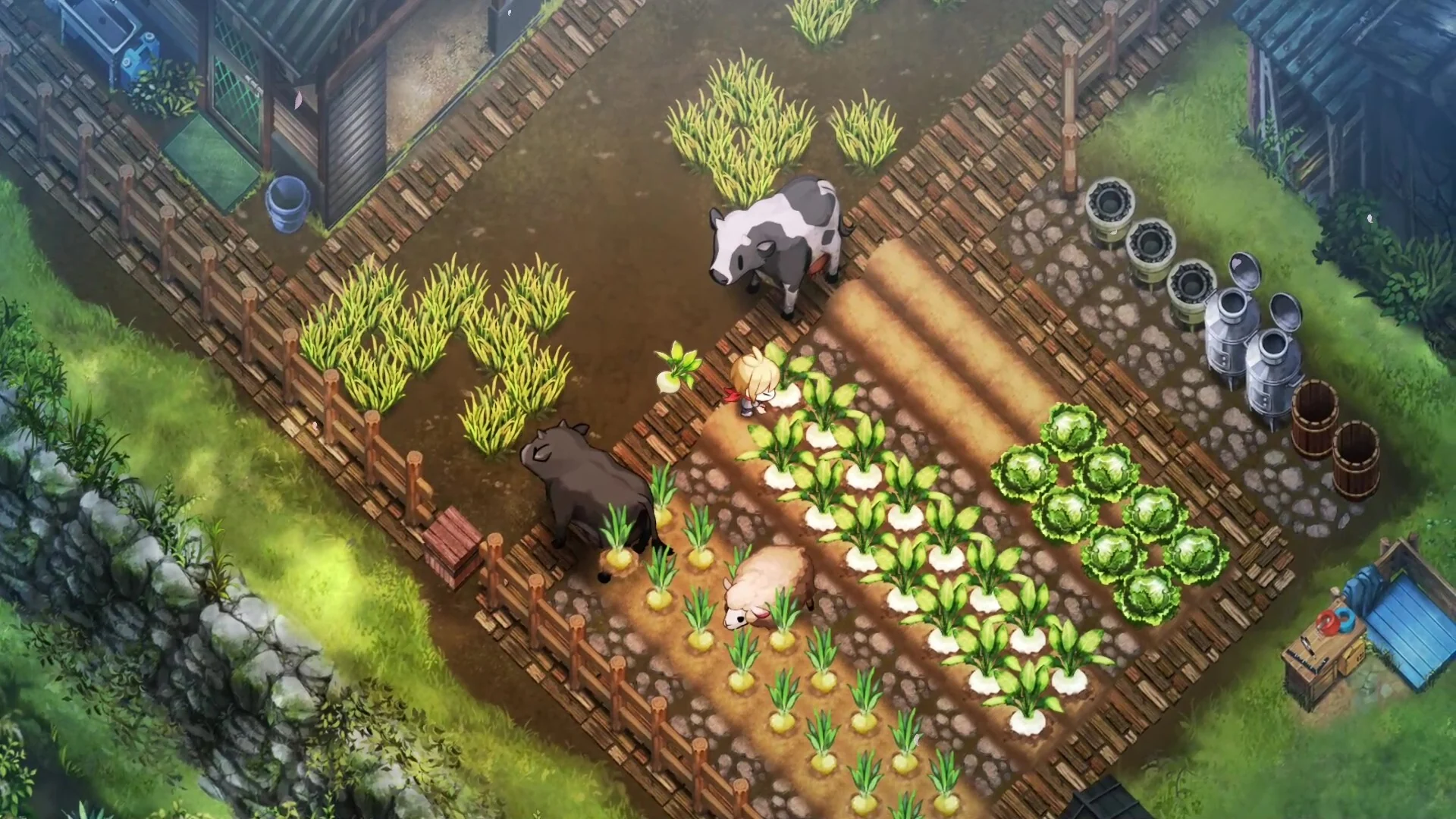
How to Install and Play Village in the Shade in English
Language barriers can make experiencing Japanese visual novels, indie titles, and niche PC games a challenge, especially when official localizations take.
Language barriers can make experiencing Japanese visual novels, indie titles, and niche PC games a challenge, especially when official localizations take months or even years to arrive. If you are trying to play Village in the Shade in English, fan translations and community-made patches offer a practical workaround.
Whether you are setting up the game on a standard Windows desktop or trying to get it running on portable handheld hardware like the Steam Deck, applying the localization files requires a specific directory structure. This guide breaks down what you need to know about setting up the Village in the Shade English patch, choosing the right version for your platform, and navigating the installation steps.
Understanding the Village in the Shade English Patch
When a game launches exclusively in Japanese, early adopters often rely on community translation projects. For Village in the Shade, patches are developed to translate the user interface, text boxes, and dialogue into English.
Depending on where you originally acquired your copy of the game, the installation files and folder pathways may differ. It is essential to identify your source version before moving files around, as mixing up patch files can cause errors or prevent the game from launching altogether.
Legacy Version vs. Steam Version
Community patch creators typically divide their releases into distinct categories:
- The Legacy Patch: Designed for non-Steam versions of the game. If you obtained your copy outside of the official Steam platform, you will generally need this legacy distribution.
- The Version 1.0.4 (or newer) Patch: Specifically tailored for copies obtained through Steam, taking into account the standard directory paths and executable behaviors of the platform.
Step-by-Step Installation Guide (Desktop and Steam Deck)
While many users apply these patches on traditional Windows PCs, a significant portion of the community plays portable titles on devices like the Steam Deck using desktop mode or compatibility layers. If you are setting up the patch on a handheld device, following a structured workflow prevents input issues.
1. Download and Extract the Files
- Locate the trusted source link for the Village in the Shade English patch archive (ZIP file).
- Download the compressed file to your system.
- Extract the contents using your preferred extraction tool (such as 7-Zip, WinRAR, or the native archive manager).
- Inside the extracted folder, look for subfolders containing the legacy files and the standard version files. Ignore older legacy folders if you are using a modern build.
2. Locate Your Game Directory
Open your main Village in the Shade game installation folder. This is the root directory where the game's primary executable (.exe) file is located.
3. Copy and Overwrite Files
- Navigate into the folder matching your game version (Steam or Legacy) within the unzipped patch directory.
- Select all of the patch files and copy them.
- Paste these files directly into the main Village in the Shade game directory.
- If prompted to replace or overwrite existing files, select Apply to all and confirm Overwrite. This ensures that the original Japanese text assets are successfully swapped out for the translated English data.
Configuring Compatibility Layers and Patcher Tools
If you are running the game on Linux-based handhelds via Steam, additional steps are required to ensure the patcher utility executes properly.
- Adding the Patcher to Steam: Before running the main game, add both the primary game executable and the patcher utility executable to Steam as non-Steam games.
- Setting Proton Compatibility: Access the properties of the patcher or the game within your library, navigate to the compatibility tab, and force the use of a compatibility tool such as Proton Experimental or a GE-Proton layer.
- Executing the Patch: Launch the patcher utility through Steam. Depending on your input device, you may need to use controller shortcuts (such as holding the Steam button and pressing designated keys like X to simulate keyboard input) to finalize the patch installation. Once the utility indicates that the patching process is complete, you can safely close it.
- Launching the Main Game: Switch back to the main game executable, ensure your compatibility layer remains set to Proton Experimental or your preferred GE version, and boot up the title.
Troubleshooting Common Issues
If you launch Village in the Shade and find that the text is still in Japanese, or if the game fails to boot entirely, check the following variables:
- Mismatched Patch Versions: Ensure you did not apply the legacy patch to a Steam copy, or vice versa. Reinstalling a clean copy of the game and reapplying the correct patch version usually resolves structural conflicts.
- Incomplete File Overwrites: Verify that all patch files were placed directly into the root game directory rather than a subfolder. Ensure that Windows or your file manager successfully completed the file overwrite prompt.
- Proton Configuration: On Steam Deck or Linux setups, failing to enable a Proton compatibility layer will often prevent Windows-based patchers and visual novels from executing. Double-check your compatibility settings in the game properties menu.
By double-checking your installation directory and matching your patch files to the correct version of the game, you can successfully translate Village in the Shade into English and enjoy the experience without language barriers.