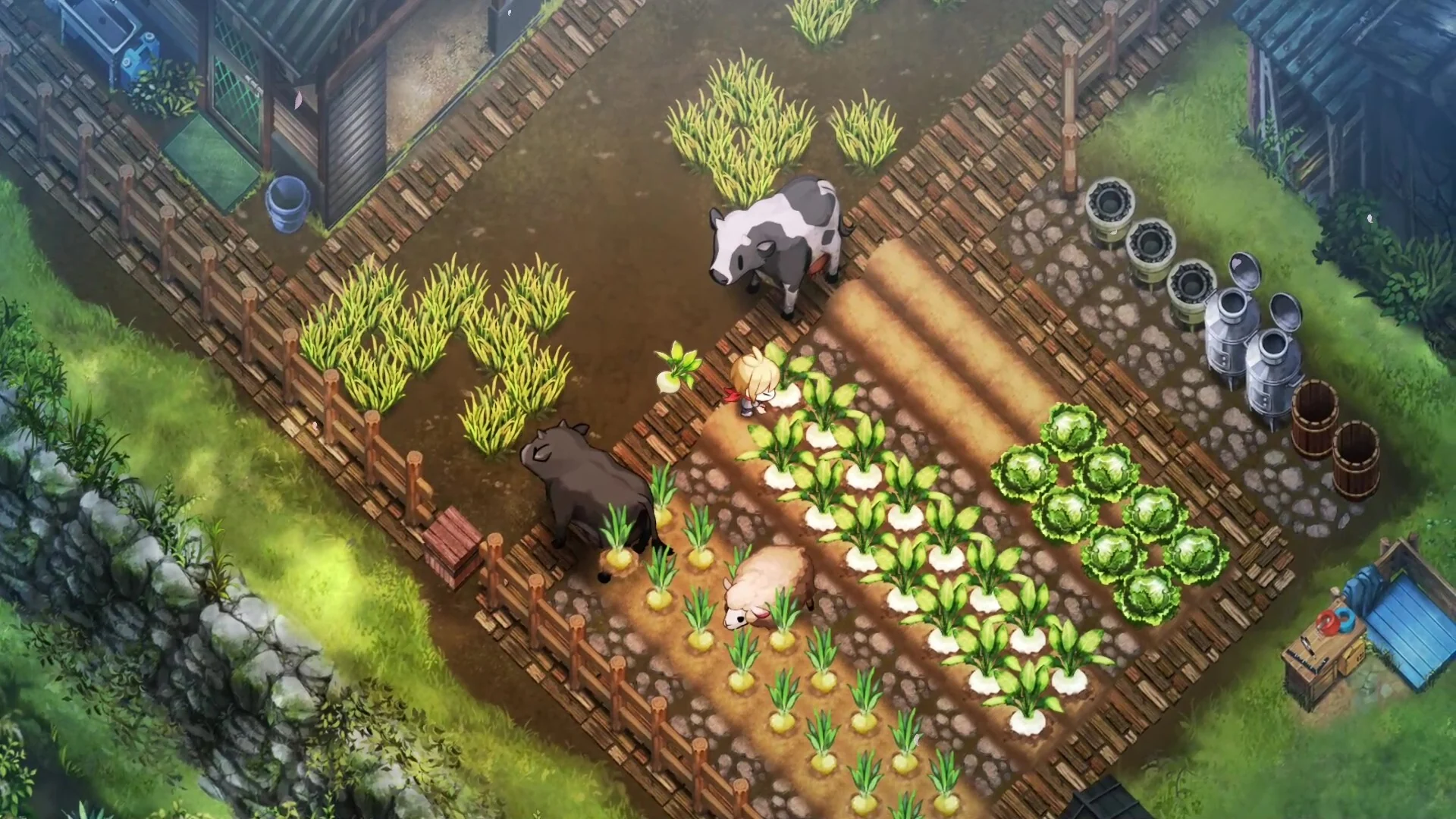
How to Change the Language and Install the English Patch for Village in the Shade
If you are trying to play Village in the Shade but find yourself stuck navigating menus in Japanese, you are not alone.
If you are trying to play Village in the Shade but find yourself stuck navigating menus in Japanese, you are not alone. Many players look for ways to change the language to English before official localization becomes widely available.
Whether you are playing on a standard PC setup or running the game on a handheld device like the Steam Deck, applying an English translation mod requires a specific set of steps. This guide covers how to locate the correct patch files, apply them to your game directory, and handle compatibility settings so you can enjoy the game in English.
Understanding the Village in the Shade Language Options
By default, the game launches in Japanese. Official multi-language support may depend on your platform and release schedules. For players using non-official versions or early releases prior to official English rollouts, community-created translation patches are the primary method used to change the language.
Before downloading anything, you need to identify where your copy of the game originates, as this determines which patch version you must use.
Choosing the Correct Patch Version
- Steam Version: If you acquired your copy of the game through Steam, you will need the specific patch variant designated for Steam installations.
- Legacy/Non-Steam Version: If your game files come from another source or a standalone launcher, you will generally require the Legacy Patch version.
Step-by-Step Guide: Installing the English Patch on PC and Steam Deck
While the following process can be completed on a standard desktop computer, many players run into this translation hurdle while setting up the game on portable Linux-based systems like the Steam Deck. Doing this in game mode with proper compatibility layers ensures the patcher utility runs smoothly.
Step 1: Download and Extract the Files
- Locate a trusted source for the Village in the Shade English patch archive (typically provided as a ZIP file).
- Extract the contents of the ZIP file to a temporary folder on your system.
- Inside the extracted folder, you will see directories or files labeled for different versions (such as Village in the Shade English Patch version 1.0.4 or the Legacy Patch). Ignore older legacy folders unless your installation type specifically demands it.
Step 2: Copy Files to the Game Directory
- Open your main Village in the Shade game installation directory.
- Select all the files from the correct patch folder that matches your game version.
- Copy these files and paste them directly into the main game folder.
- If prompted to replace or overwrite existing files, choose Apply to all and confirm the overwrite action. This ensures the translation files replace the default Japanese text assets.
Step 3: Setting Up the Patcher in Steam (Recommended for Steam Deck Users)
If you are playing via Steam or a Steam Deck, you will want to register both the main game executable (.exe) and the patch utility as non-Steam games to manage them easily.
- Add the main game executable and the Village in the Shade Patcher executable to your Steam library as non-Steam games.
- Switch to your gaming interface or Game Mode if you are using a handheld device, as it often provides a smoother environment for managing input controls during patching.
- Navigate to your non-Steam games library, locate the Village in the Shade Patcher, and open its Properties.
- Go to the Compatibility tab, check the box to force the use of a compatibility tool, and select Proton Experimental (or a stable Proton GE version).
Step 4: Running the Patcher Utility
- Launch the Village in the Shade Patcher through Steam.
- Allow a moment for the utility window to open. Depending on your system, you may need to use system shortcuts or external input commands (such as holding the Steam button and pressing X on a handheld controller) to bring up the on-screen keyboard or select options.
- Follow the on-screen prompts within the patcher interface to apply the translation.
- Once the patcher indicates completion (often displaying a prompt like "press enter to close"), you can safely close the patch utility.
Step 5: Launching the Game in English
- Return to your Steam library and locate the main Village in the Shade game executable.
- Open its Properties, navigate to Compatibility, and ensure it is also set to run using Proton Experimental or your preferred Proton layer.
- Launch the game.
Upon loading, the user interface, dialogue, and text prompts should now display in English.
Troubleshooting Tips
- Patcher Won't Open: If the patch executable fails to launch, double-check that your compatibility layer (Proton version) is enabled in the non-Steam game properties.
- Text Remains in Japanese: Ensure that you copied the files directly into the root game directory rather than a subfolder, and that you selected the correct patch variant (Steam vs. Legacy) matching your installation source.
- Verifying Official Updates: Game developers frequently push updates that alter file directories. If an official language patch or localization option has been added to your version of the game, check the main in-game settings menu first before relying on third-based modification tools.